Center for Educational Media
CEMOnlineInstructions
Thank you for your interest in CEM’s online PD certificate system!
You will find instructions below in two forms: 1) Video & 2) Written Instructions on how to sign up for a free account, enroll in a course, and obtain your certificate.
If you have any difficulty during this process, please reach out to cem@mtsu.edu so we can assist you.
Step 1: Sign up for a FREE account.
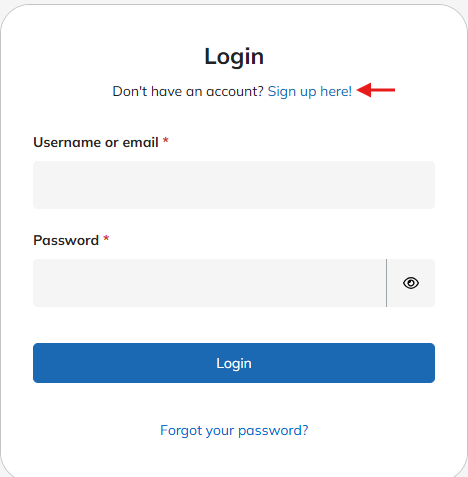
- Navigate with your preferred browser to CEM.mtsu.edu/CEMOnline
- Click “Sign up here!”
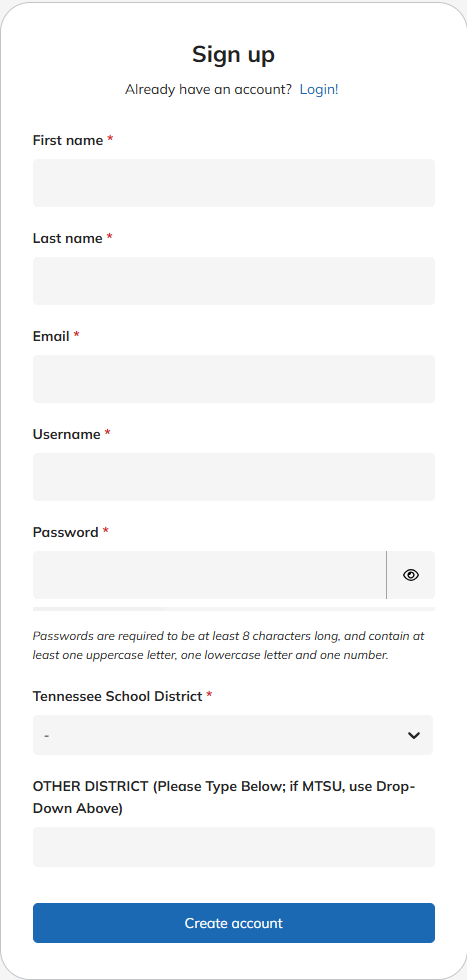
Step 2: Fill out the required information.
Step 3: Await admin approval.
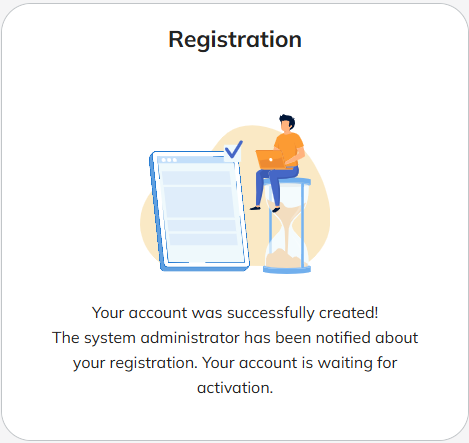
- You will be presented with the screen below.
- After we approve your account (usually within 24 hours unless it is over the weekend), you will receive an email letting you know your account has been activated and you may now access the system via the link in the email.
Step 4: Enroll in a course.
- Your home screen will eventually show courses you have enrolled in. But to start, it is blank.
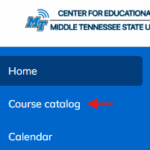
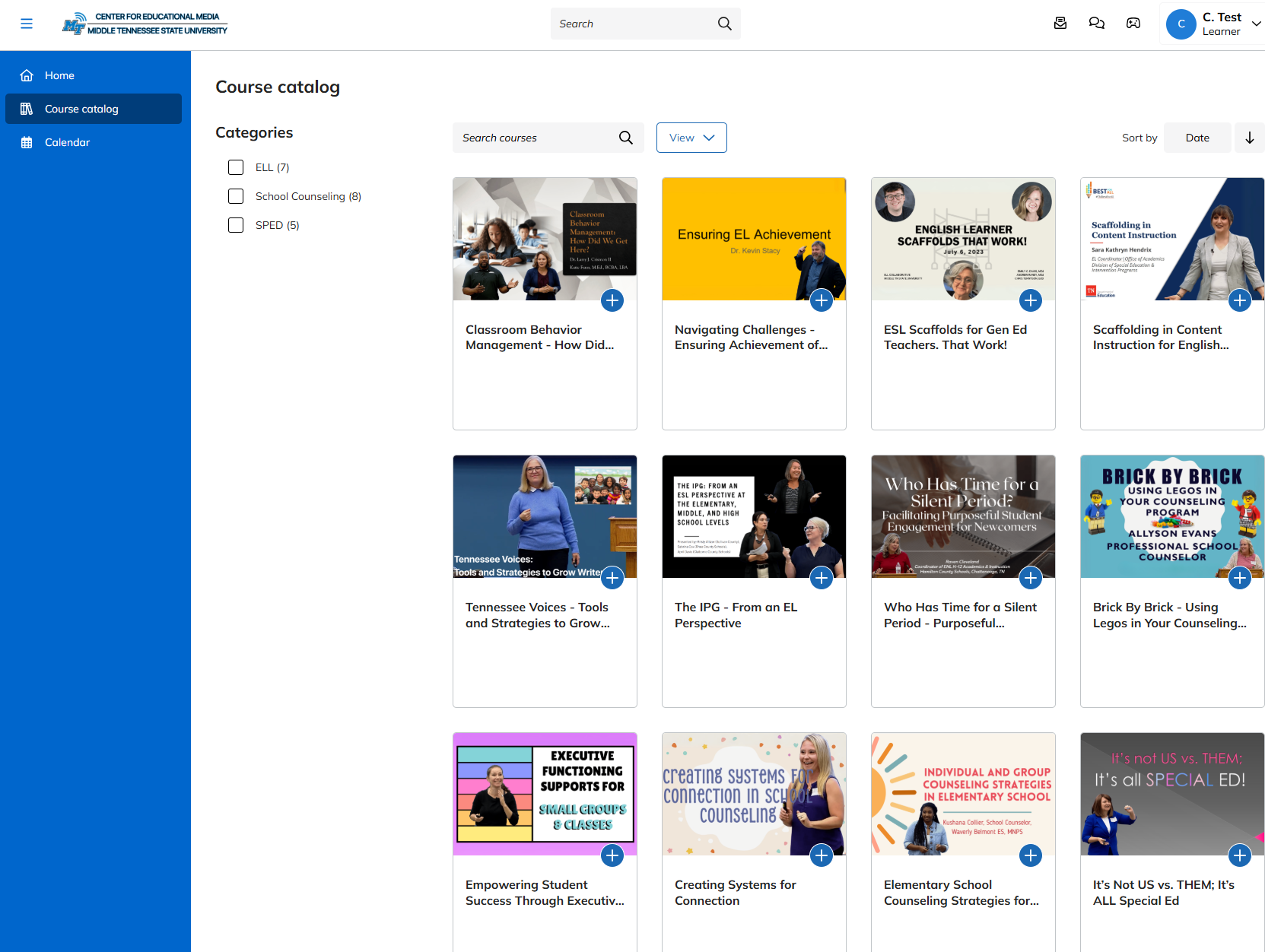
- Click on “Course Catalog” on the left menu, and you will see all available courses.
- To see more than one page of courses, scroll to the bottom and either change the number per page or the arrow to advance to the next page.

- You can filter courses by selecting one of our three Categories (ELL, School Counseling, & SPED).
There are two ways to enroll in a course.
1) Click the + sign on a course thumbnail.
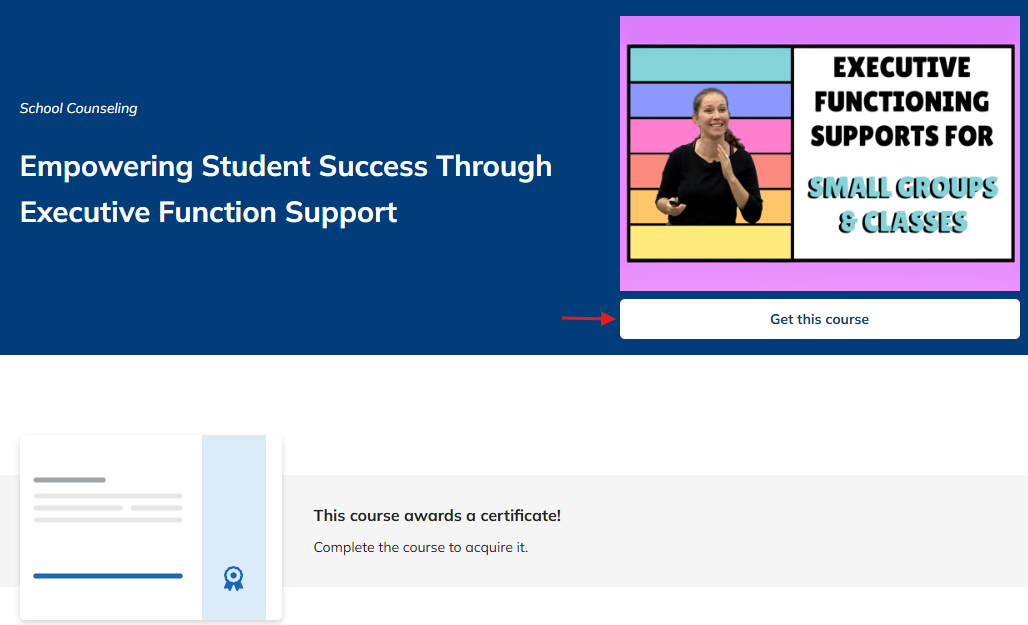
2) OR click on a course thumbnail and select “Get this course.”
Step 5: Complete a course to receive PD certificate.
- Begin the enrolled course.
- Section 1 of the course requires the user to accept the TN Teacher’s Code of Conduct.
- The remaining sections are videos that must be watched in full to complete the course.
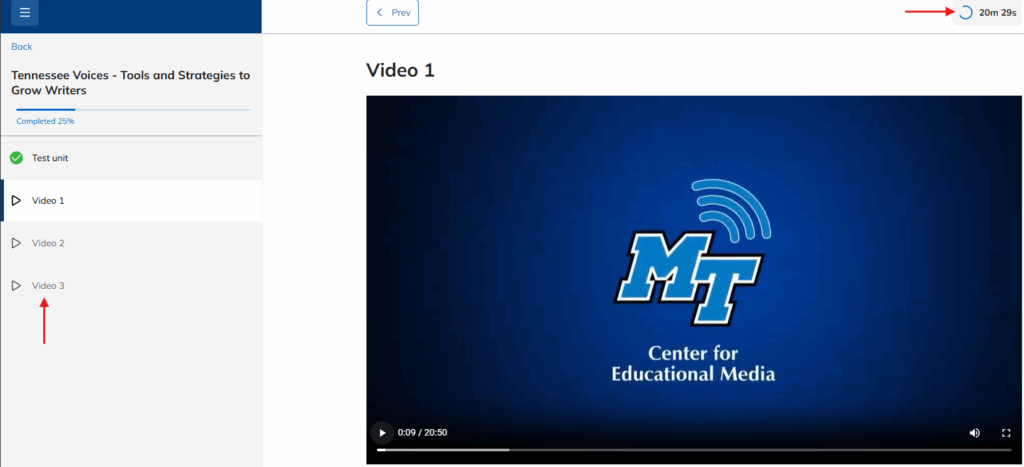
- The videos are divided into watchable sections. All sections show on the left side of the page.
- While watching the videos, if you click outside of the active browser window, the video will pause.
- There is a timer in the upper right-hand corner of the window that shows the remaining time of that section’s video.
- After the section is complete, the timer will turn into a Next button to proceed to the following section.
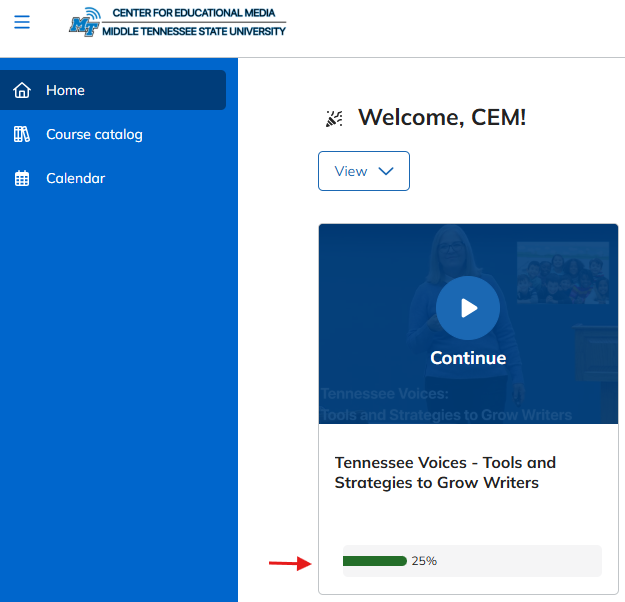
- If you do not complete all sections of the course, you can go back at a later time, see your active courses on your home screen, and see your percentage of completion. Simply click Continue to go back to the enrolled course.
NOTE: If you leave the course in the middle of a video module, you will have to repeat that module. Modules must be completed in order to resume the course at that spot.
Step 6: Download your Certificate.
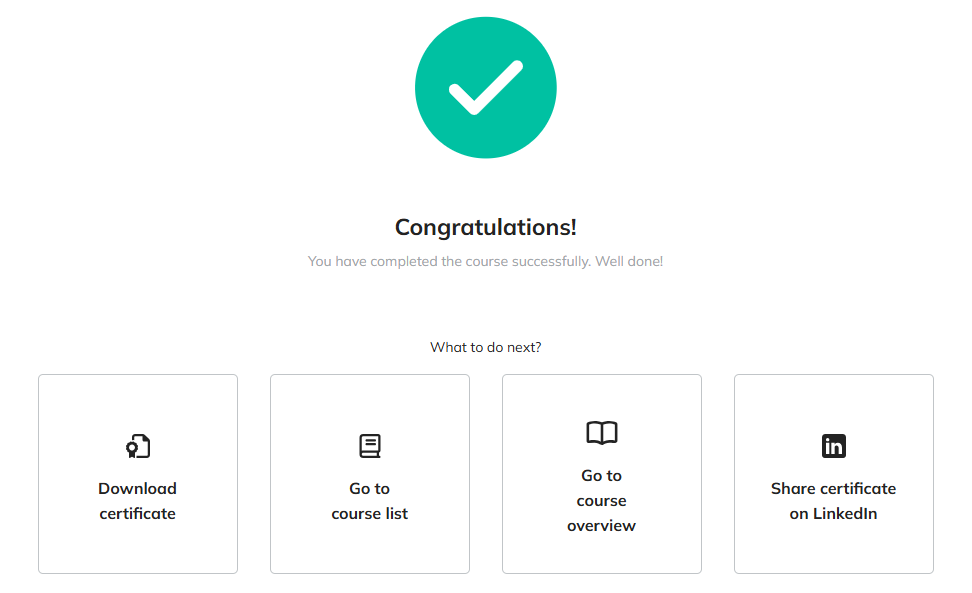
- Upon course completion, you will see the page below with the option to:
- Download your certificate
- Go back to our course list
- Go back to the course overview
- Share your certificate on LinkedIn
- You should receive an email regarding the certificate you just earned.
- The certificate will be dated, listing the course name and how long it took to complete (in hours). It will also be digitally signed by the Director of the Center for Educational Media, Dr. Laura Clark.
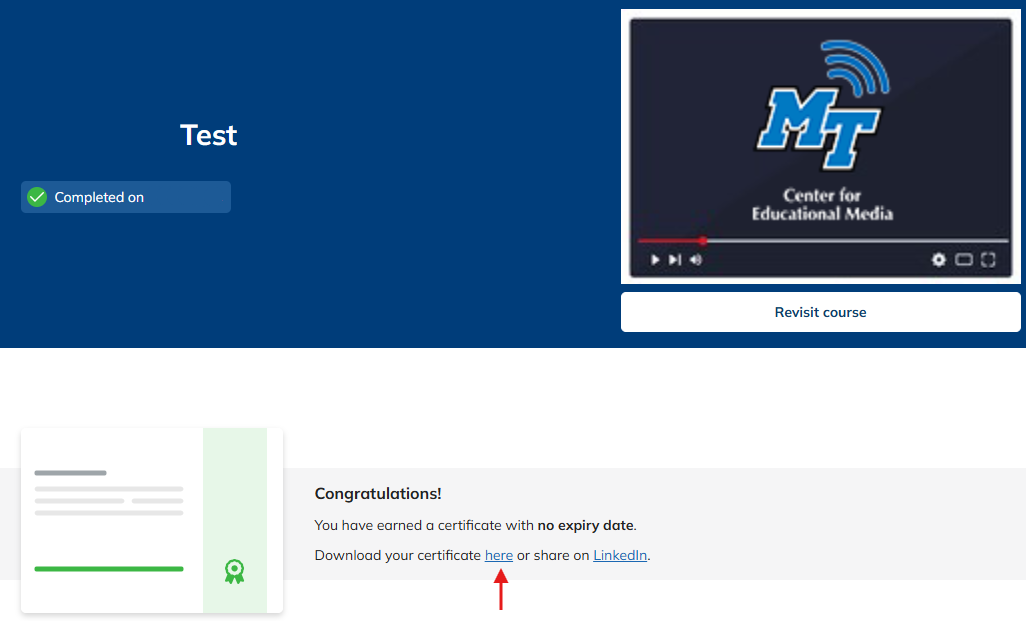
- You can revisit any completed course to find your earned certificate within 4 years of completion:
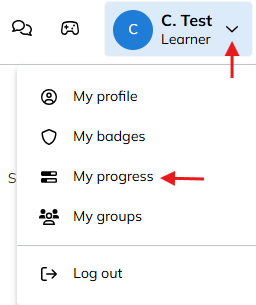
- You can also find all earned certificates by clicking on your profile in the upper right-hand corner and selecting “My progress” -> Certificates:
The TalentLMS mobile app is available on iOS and Android to complete PD credit from any location in the world!
NOTE: You must first sign up for a course in a browser on your computer. It will then show up in your account on the mobile app.
- Simply use the links below to download the app and when it asks for a domain enter: cem.talentlms.com


Step 7: Complete the feedback form below.
FEEDBACK FORM
Thank you for using our online PD system! Your feedback is invaluable and will pave the way for us to improve our systems and provide online professional development to teachers across the state of Tennessee!
Upcoming Events